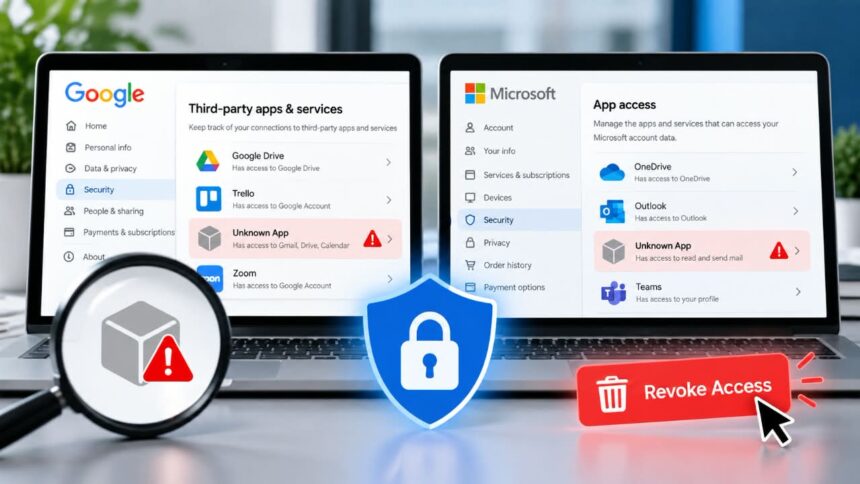
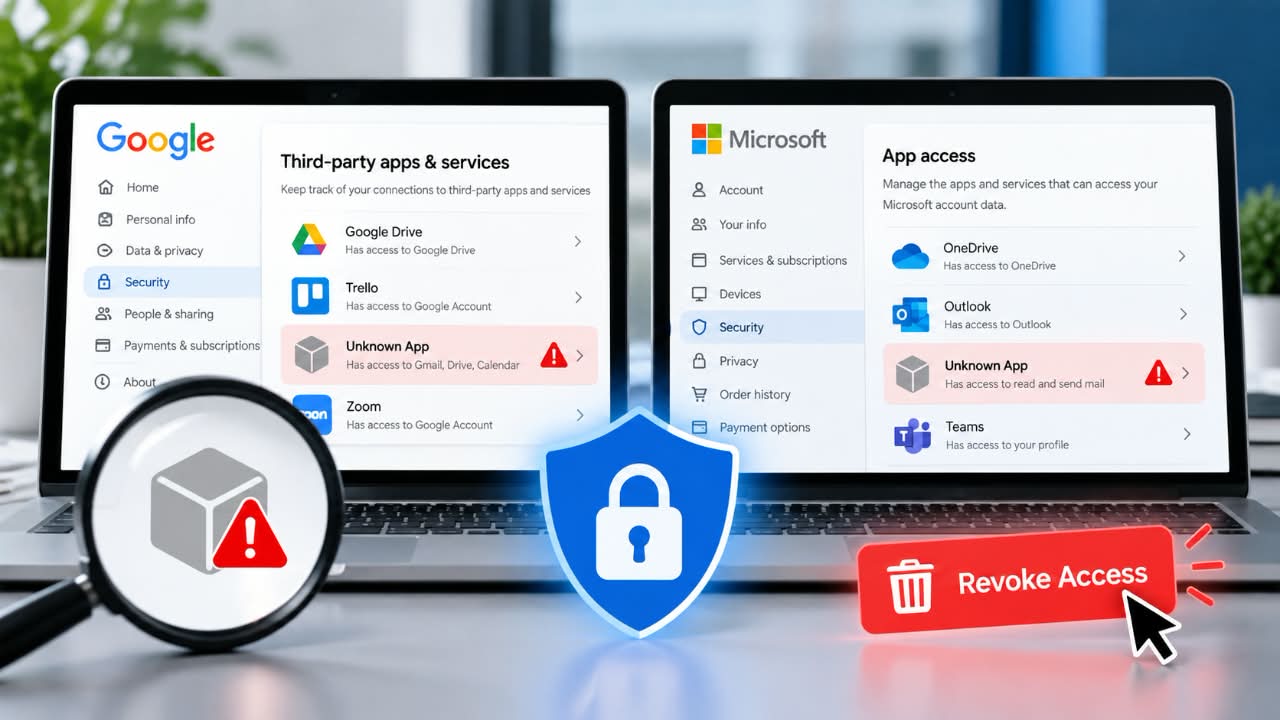
On September 1, 2026, the FBI warned that malicious actors were using OAuth consent phishing to gain access to victim accounts without needing the victim’s password. The agency said the technique can bypass passwords and multi-factor authentication by persuading people to authorise a malicious application instead.
An unfamiliar connection is not automatically evidence of a compromised account, but it is also not harmless digital clutter. Depending on the permissions granted, an application may be able to read email, work with files, access calendars or perform other actions on your behalf.
The good news is that both Google and Microsoft give users ways to review these connections and revoke access. The trick is knowing what you are actually looking at, because simply deleting an app from your phone or changing your password does not necessarily remove an OAuth authorisation.
What Is an OAuth App Connection?
OAuth is an authorisation framework that lets one application request access to resources held by another service. Instead of typing your Google or Microsoft password into the third-party application, you authenticate with the identity provider and approve the permissions requested by that application.
Google explains that third-party linked apps can request access to services such as Gmail, Google Drive, Calendar, Photos and Contacts. The access is supposed to be limited to what you authorise.
Microsoft uses a similar model through its identity platform and Microsoft Graph. Applications request specific delegated permissions, and the user or an administrator grants them. The actual capability depends on the permission involved.
This is an important distinction: authentication answers “Who are you?” while authorisation answers “What is this application allowed to do?”
That distinction is also what attackers are exploiting.
Why an Unknown OAuth App Can Become a Security Problem
Imagine receiving a message that appears to come from someone you know. It contains a document link and asks you to review it. You click the link, authenticate with Microsoft, and see a genuine Microsoft consent screen.
Nothing about the screen necessarily looks broken. The identity provider may be legitimate. The malicious part is the application requesting access.
Microsoft calls this consent phishing: attackers trick users into granting permissions to malicious cloud applications. Microsoft notes that the legitimate identity platform can host the consent experience, which makes the attack harder to recognise at a glance.
The FBI described the same problem in its September 2026 advisory. Malicious actors can register applications through legitimate OAuth mechanisms, configure significant permissions and then socially engineer victims into approving them.
That is why “I never gave anyone my password” is not enough reassurance after a suspicious authorisation.
Microsoft has also documented more recent OAuth abuse involving malicious redirection mechanisms, showing that attackers are not limited to one simple consent-phishing pattern.
To make that distinction easier to understand, the first visual in this section should show a simple OAuth flow:
victim receives phishing message → opens link → authenticates with Google or Microsoft → sees legitimate consent screen → approves malicious application → application receives authorised access.
The visual should highlight that the attack can occur without the victim handing the attacker a password.
How to Tell What an OAuth App Can Actually Access
The app’s name is only the beginning of the investigation.
When Google shows a third-party access request, it identifies the Google services and level of data access requested. Google says linked applications can have permissions ranging from basic profile information to the ability to view, modify, create or delete account data.
Microsoft’s permission model gives an even clearer technical example.
| Permission example | What it can allow | What I would check |
|---|---|---|
Mail.Read | Read the signed-in user’s mailbox. | Does the app genuinely need to read email? |
Mail.ReadWrite | Create, read, update and delete mail in the user’s mailbox. | Why does this application need write access? |
Mail.Send | Send mail as the user. | Could the app send messages that appear to come from me? |
offline_access | Maintain access to authorised data when the user is not actively using the app. | Is continued access actually necessary? |
These descriptions come directly from Microsoft’s Microsoft Graph permission reference. In particular, Mail.ReadWrite can allow an application to create, read, update and delete email, while Mail.Send can allow it to send messages as the user. The offline_access scope is used to maintain access to data already authorised.
That is why I would not use a crude rule such as “anything unfamiliar is malicious.” A scheduling application having calendar access is explainable. A simple PDF converter asking for broad mailbox access is a different situation entirely.
Check the Publisher, Not Just the App Name
Attackers understand that people trust familiar names.
Microsoft specifically warns that attackers can create applications with names designed to resemble legitimate services and recommends checking the application’s publisher, domain and permissions.
So when you inspect an unfamiliar connection, ask four questions:
- Who published the application?
- What permissions did I grant?
- Does the application actually need those permissions?
- Do I remember using this service at roughly the time access was granted?
For organisation-managed accounts, the application or client ID can be especially useful because display names are not unique security identifiers.
How to Find and Remove Unknown Apps From a Google Account
Google’s current account controls group these relationships under linked apps. Google separates “Sign in with Google”, apps that have access to Google Account data and other types of account linking.
Step 1: Open your Google Account’s linked-app controls
Open your Google Account and go to the linked apps section. Google provides the management interface for reviewing and removing third-party connections.
Step 2: Review the connection type
Do not assume every entry represents the same kind of access. Google currently provides separate views for:
- Sign in with Google
- Apps with access to your Google Account
- Other linked account relationships
This distinction is useful because a website that only uses your Google identity for authentication is not equivalent to an application that can read or modify Gmail or Drive data.
Step 3: Open the app and inspect its permissions
Select an application you do not recognise. Read the services and level of access Google lists before deciding what to do.
Google explicitly recommends reviewing the permissions and the developer’s privacy and security information before trusting a third-party app.
Step 4: Revoke access
Google’s documented process allows you to select the linked app and remove its access. Once access is removed, the app can no longer access the authorised Google Account data through that connection.
For Sign in with Google, the relevant action is to stop using Sign in with Google for that application. Google notes that doing so does not automatically delete the account or data stored on the third-party service.
Step 5: Remember the data already collected
This is the step people often skip.
Revoking access prevents future access through the authorisation, but it does not necessarily retrieve information the application already received. Google explicitly says you may need to contact the developer to request deletion of data the app already has.
So if an unknown application had access to your Gmail, Drive or Photos, I would treat revocation as containment, not automatically as complete cleanup.
How to Find and Remove Unknown Apps From a Microsoft Account
Microsoft’s account-management experience differs between personal Microsoft accounts and work or school accounts, so the first question is which type of account you are dealing with.
For a personal Microsoft account
Microsoft provides an App access area within the Microsoft Account privacy controls. From there, you can review application access and remove permissions for connections you no longer trust.
For a work or school Microsoft account
Organisation-managed accounts use Microsoft Entra ID. Users can review authorised applications through the My Apps portal, while administrators have broader controls through Microsoft Entra Enterprise Applications and associated audit and sign-in logs.
Microsoft’s guidance recommends investigating suspicious applications by reviewing the permissions requested, Entra audit activity and the sign-in activity of users who authorised the application.
What to look for before removing it
Open the application’s details and look at the permissions. A connection involving Mail.Read, Mail.ReadWrite, Mail.Send, broad file access or persistent access deserves significantly more scrutiny than a basic profile permission. Microsoft’s official Graph reference documents these capabilities in detail.
What to Do If the App Looks Suspicious
If an application is genuinely unfamiliar, has excessive permissions or appeared after a suspicious message, I would stop treating it as ordinary account housekeeping.
1. Record what you found
Before removing anything, capture the application name, publisher, requested permissions, application or client ID where available, and any visible authorisation date.
This takes less than a minute and can become useful evidence if the connection turns out to be malicious.
2. Revoke the OAuth access
Remove the application through Google’s or Microsoft’s account controls. Do not rely on uninstalling the application from your phone or computer. The authorisation exists at the account or identity-provider level.
3. Review recent account activity
Google recommends checking recent security events, devices and account-access settings when you suspect a compromise.
Microsoft also provides recent activity and sign-in information that can help you determine whether suspicious access occurred around the same period.
4. Check email controls
If the suspicious app had mail access, inspect rules, forwarding, delegation, sent items and deleted messages. Look for changes you did not make and communications you did not send.
This is a simple but important piece of incident investigation. An attacker who can read messages may also be looking for password-reset links, financial information, confidential documents or other accounts that use your mailbox for recovery.
5. Secure the identity itself
If you find evidence of broader compromise, reset the password, verify recovery information and review MFA methods. Password rotation is useful, but it should sit alongside OAuth revocation rather than replace it.
The FBI’s September 2026 advisory specifically warns that changing a password alone does not remove malicious OAuth access.
What If You Already Clicked “Allow”?
Do not panic, but do not dismiss it either.
Start by identifying exactly what was authorised. A consent action that exposed only your basic profile is very different from one that granted an application permission to read your mailbox and send messages.
Then investigate the timeline.
For example, suppose you receive a document-sharing message at 10:14 a.m., approve an application at 10:16 a.m. and later find unfamiliar messages in your Sent folder. Those events deserve to be examined together rather than treated as unrelated incidents.
The FBI has described campaigns in which malicious applications are configured with significant permissions, including access to files and emails, before victims are socially engineered into granting consent.
For business accounts, the investigation can go deeper. Microsoft recommends reviewing application activity, delegated permissions, audit logs and user sign-ins when dealing with suspicious consent grants.
Removing an App Does Not Erase What It Already Copied
This deserves its own warning because the wording around account controls can create a false sense of completion.
Suppose a malicious application was authorised to read Gmail messages for several hours. You revoke access. The application’s future API calls should no longer have that authorised access, but anything it copied while access was available is not magically pulled back.
Google explicitly explains that third-party applications may retain data already shared with them and directs users to the application’s site or developer for information about deletion.
That is why incident response has two separate objectives:
- Stop further access.
- Determine what information may already have been exposed.
Those are related tasks, but they are not the same task.
How to Tell an Ordinary Old Connection From a Potential Compromise
An old connection may simply belong to a service you tried once and forgot about.
That is common enough that “unknown” should not automatically become “malicious”. Instead, look for a combination of signals.
- The application’s purpose does not match the permissions.
- The publisher is unfamiliar or difficult to verify.
- The name resembles a well-known service but the publisher does not match.
- The authorisation appeared immediately after an unexpected email, document invitation or message.
- The application has mail, file or write permissions that you cannot explain.
- There are unusual account events around the same time.
- You find unexpected sent mail, forwarding rules, deleted messages or file changes.
Microsoft specifically recommends validating application sources, using verified publishers where possible and limiting user consent to applications that meet defined security criteria.
Google similarly recommends reviewing an application’s privacy policy and security disclosures before granting account access, particularly for sensitive information.
Do Not Treat “Verified” as a Magic Security Stamp
Verification can be useful, but it should not replace judgement.
Google explains that some applications may be unverified because they are still in development or are internal applications. At the same time, Google warns that untrustworthy developers can abuse unverified applications to install unwanted software or steal personal information.
The better question is not simply “Is this verified?”
Ask instead:
“Is this the application I intended to authorise, from a publisher I recognise, with permissions that make sense for the job it performs?”
Businesses Need a Different Approach
For an individual, manually checking connected apps every so often is practical. For a company with dozens, hundreds or thousands of users, it is not enough.
Google Workspace provides administrators with application-access controls that can expose information such as application IDs, requested services, OAuth scopes, verification status and the number of users associated with an application. Administrators can also restrict or block application access.
Microsoft provides comparable controls through Entra ID and related security products. Microsoft recommends controlling who can consent to applications and using policies that restrict user consent to trusted applications and appropriate permissions.
Microsoft Defender for Cloud Apps can also provide OAuth application monitoring and detection capabilities for suspicious application behaviour.
For an organisation, the mature approach is therefore not simply “tell employees not to click Allow”. It is to reduce unnecessary user consent, restrict sensitive scopes, monitor application activity and investigate abnormal grants.
A Simple OAuth Security Check I Would Actually Use
If I were cleaning up an account today, I would use this sequence:
- List the connected applications.
- Separate sign-in-only connections from data-access connections.
- Open unfamiliar entries.
- Read the permissions instead of judging the logo.
- Check the publisher and application identity.
- Ask whether the permissions match the app’s purpose.
- Revoke connections I no longer need.
- Investigate account activity when a grant looks suspicious.
- Reset credentials and review MFA when there is evidence of broader compromise.
- Remember that revocation does not necessarily delete data already copied by the application.
The third visual should turn this sequence into a compact decision diagram:
Recognise app → inspect publisher → inspect permissions → purpose matches? → keep or revoke → suspicious activity found? → investigate and secure account.
This would work better than another generic hacker illustration because the reader can use the diagram as a repeatable security checklist.
Conclusion
OAuth is not inherently suspicious. It is one of the mechanisms that makes modern applications work without requiring users to hand their passwords to every service they use.
The security problem begins when users approve access without understanding what they are granting, or when attackers persuade them to authorise applications that should never have been trusted.
That is why I would make one habit routine: every so often, open your Google or Microsoft account’s application-access page and actually read the list.
Do not ask only, “Do I recognise this name?”
Ask “What can this application do with my account, who operates it, and why does it need that access?”
That question gets much closer to the real security boundary.
References for Further Reading
- FBI Internet Crime Complaint Center: Malicious Cyber Actors Gain Access to Victim Accounts Through Consent Phishing
- Google Account Help: Manage links between your Google Account and apps from other developers
- Google Account Help: Share some access to your Google Account data with apps from other developers
- Microsoft Learn: Protect against consent phishing
- Microsoft Learn: Microsoft Graph permissions reference
- Microsoft Security: OAuth redirection abuse enables phishing and malware delivery